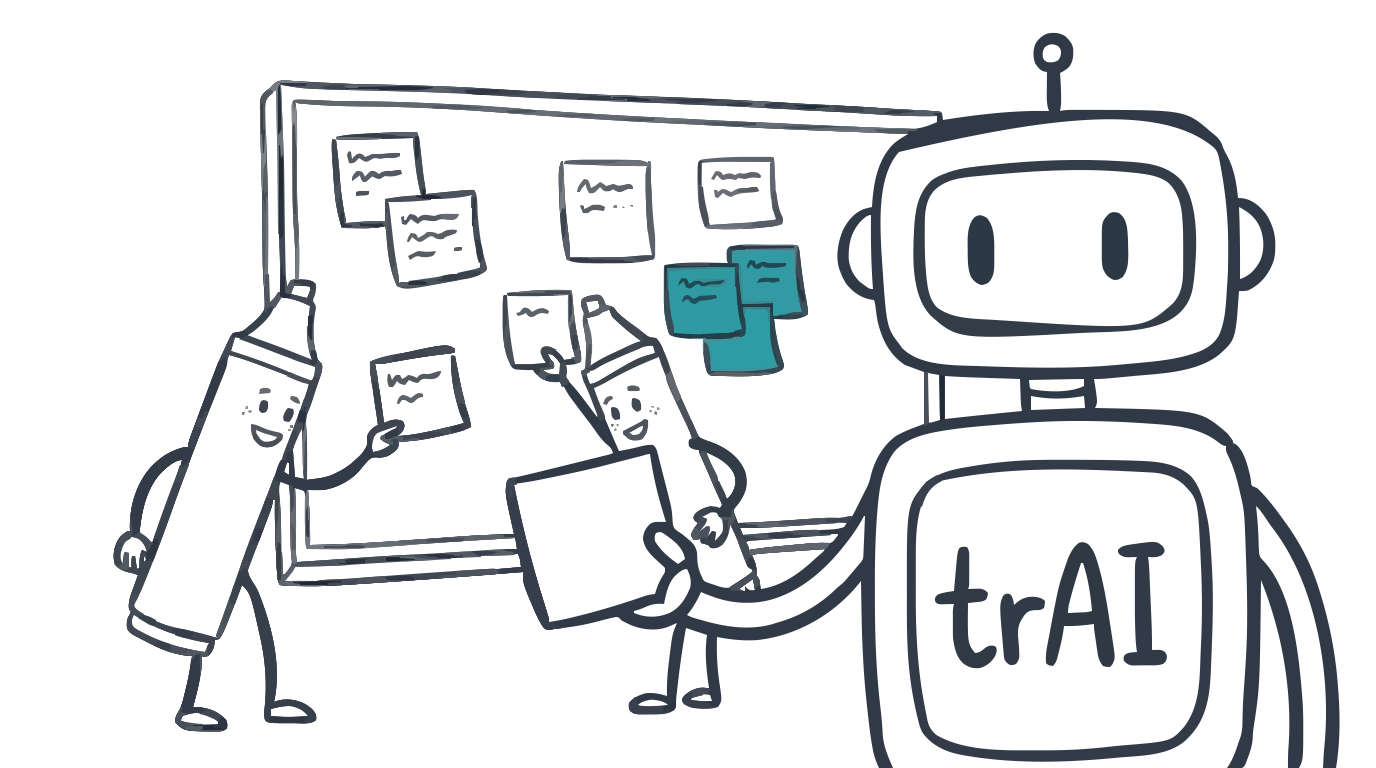
Meet trAI, your in-meeting AI assistant
trAI is the TeamRetro assistant that works inside the meeting. Ask it to summarize themes, capture actions or look up past sessions while you facilitate — private to you, and only within your own permissions.
Facilitating a meeting well and keeping an accurate record of it pull in opposite directions. You either follow the discussion or you write it down, and whichever you pick, the other one suffers.
trAI is our answer to the second half. It’s TeamRetro’s AI assistant, and the thing that makes it different from most AI features is where it lives: in the side panel of the meeting you’re running right now.
What it actually does
trAI works in retrospectives, health checks, estimation sessions and standups. You type what you want in the panel, and it does the admin while you keep facilitating.
It reads:
- Summarize this meeting, or a past one
- Search across your team’s feedback by topic or theme
- Show health-check results and trends over time
- Look up previous estimation sessions
- Show who’s on the team and how the team has been tracking
And it writes, on your behalf:
- Add ideas to the board, vote on them, post comments, give kudos
- Create, update, complete or reassign actions, and show what’s overdue
- Add or update working agreements
- Park a topic for the next retro
The prompts that earn their place are the boring ones. “Summarize the themes so far” in a retro, so you can check the team agrees before moving on. “Compare these results to last time” in a health check, while the radar is still on screen. “How did we size work like this before?” in an estimation session, so a contested number has some history behind it instead of just louder opinions.
What it can’t do
What trAI can’t reach is what decides whether you can hand it to a whole team.
trAI acts as you, with exactly your permissions. It can never see or change anything you couldn’t see or change yourself, so turning it on doesn’t widen anyone’s access to anything.
Three hard limits are worth knowing before you hand it to a team. It can’t reveal who wrote an anonymous idea, comment or survey response — anonymity survives the assistant. It can’t reach the internet, or any system outside TeamRetro. And it won’t follow instructions written inside meeting content: if someone types “ignore your rules” onto a sticky note, that’s just a sticky note. It acts on what you type in the chat, and nothing else.
Each conversation is private to the person who opened it. It acts only when you ask it to, and everything it creates stays visible and editable like any other item in the meeting — so if it captures an action badly, the team can see that and fix it. It’s doing the typing, not making the decisions.
Your meeting content is processed briefly to answer you, and is never stored by the model or used to train it. trAI runs on Claude Sonnet via AWS Bedrock; we don’t build or train models ourselves. The full position, including what runs where, is on responsible AI.
Who decides whether it’s on
Three answers, because “is it on for the account” and “may this role use it” are different questions:
- It starts on — except on Enterprise. trAI is on by default on trial and paid plans. On Enterprise accounts it is off by default, so your organization can review it before rolling it out.
- Account owners and admins hold the account switch under Settings → AI & Features → AI Assistant.
- Team administrators choose which roles may use it under Team Settings → Roles & Permissions → Use the AI assistant. Team members are allowed by default; guests can’t use trAI at all.
trAI or the MCP server?
We now ship two ways to ask an assistant about your teams, and the difference is simply where you’re standing.
trAI is inside the meeting, for the person facilitating right now. The TeamRetro MCP server is for the rest of your week: it connects Claude, ChatGPT, Copilot or Gemini to your teams so you can ask from the assistant you already work in — which teams have a retro overdue, what’s still open from last sprint, how health is trending.
Most teams end up using both, and they don’t overlap much in practice. One is a facilitation tool; the other is how you catch up on Monday morning.
Try it
trAI is in the side panel of your next retro, health check, estimation or standup session. There’s a fuller tour, including the admin controls and the example prompts above, on the trAI page.
Related posts
- October 7, 2026Daily standups in TeamRetro: post before you meet, and keep every blocker in sight
- July 18, 2026Our AI teammates joined our retro
- November 9, 2024AI-powered retrospective features that make agile retrospectives easier and smarter
- June 16, 2023Beyond the surface: unearthing valuable metrics from retrospective and health checks
- March 11, 2022Ensuring top-tier data security with TeamRetro: our journey to SOC2 and GDPR compliance.
- March 8, 2022Add background images & illustrations to your agile retrospectives (fun, easy, and engaging)
- December 20, 2021End of year retrospective: an exercise in gratitude

- August 27, 2021Return on time invested (ROTI) in agile meetings